 Notyra Docs
Usage of Custom Themes
In addition to the default themes, Notyra also offers custom themes that users can utilize. Users can further customize the appearance of Notyra to their liking.
Available Custom Themes
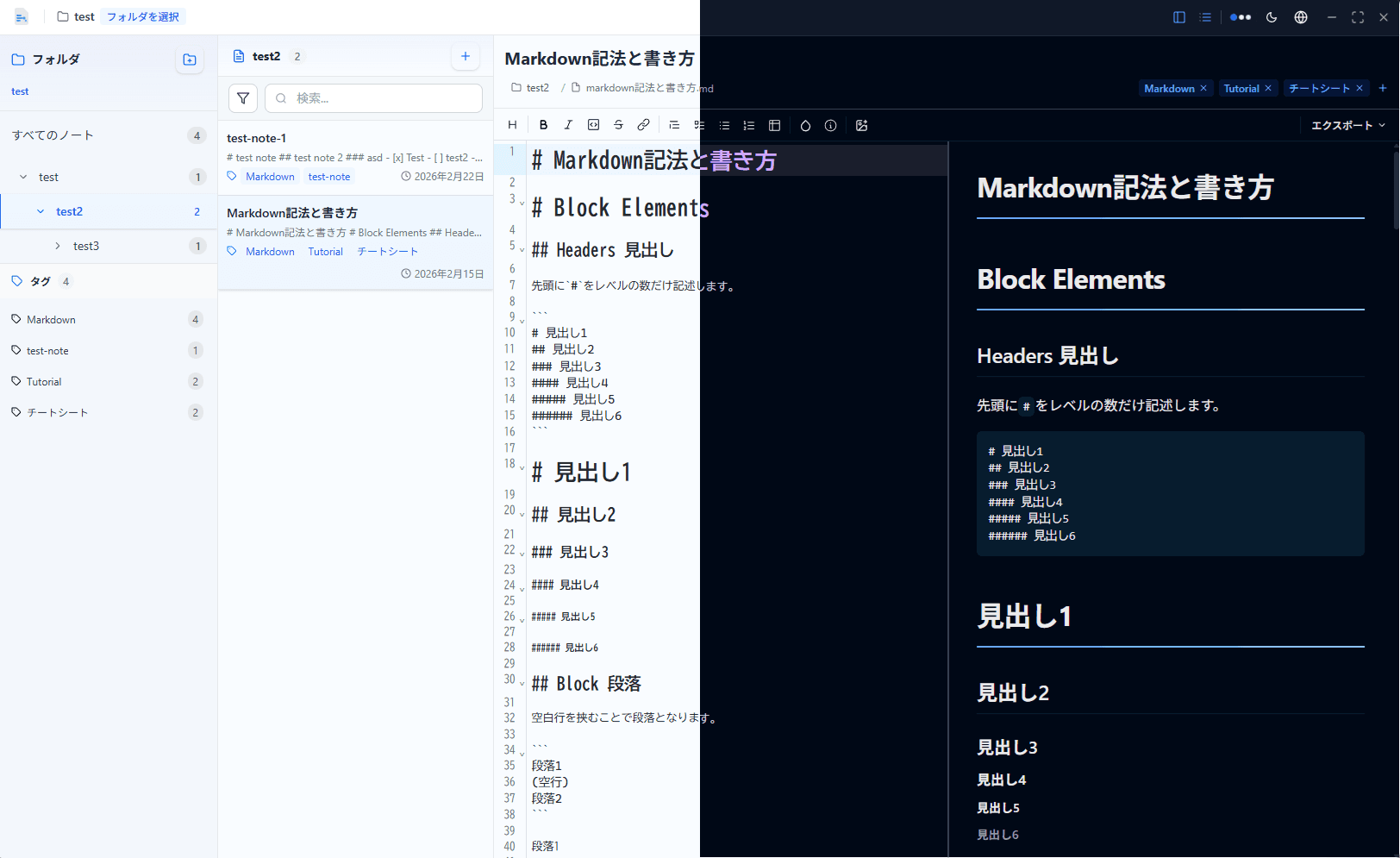
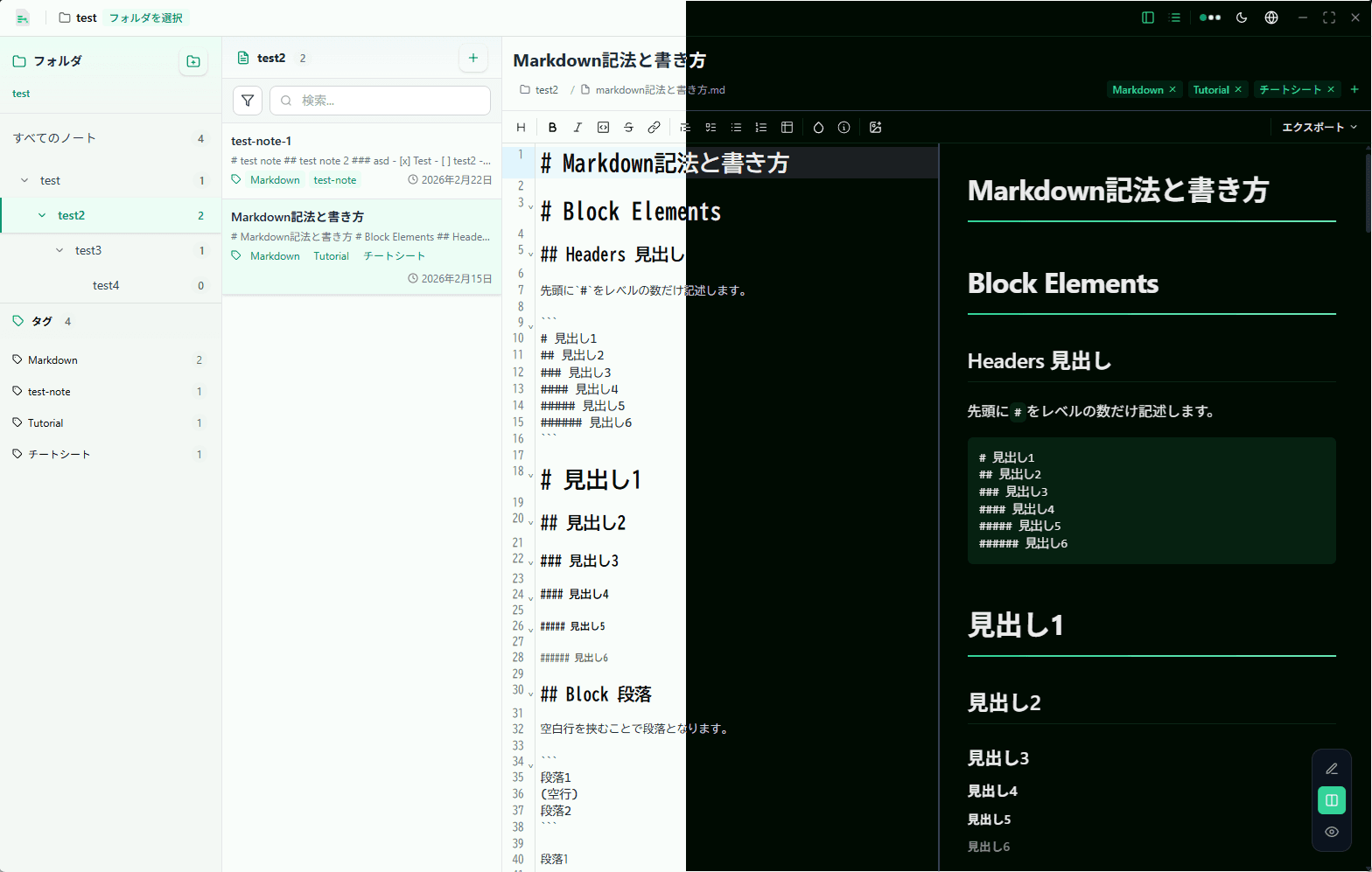
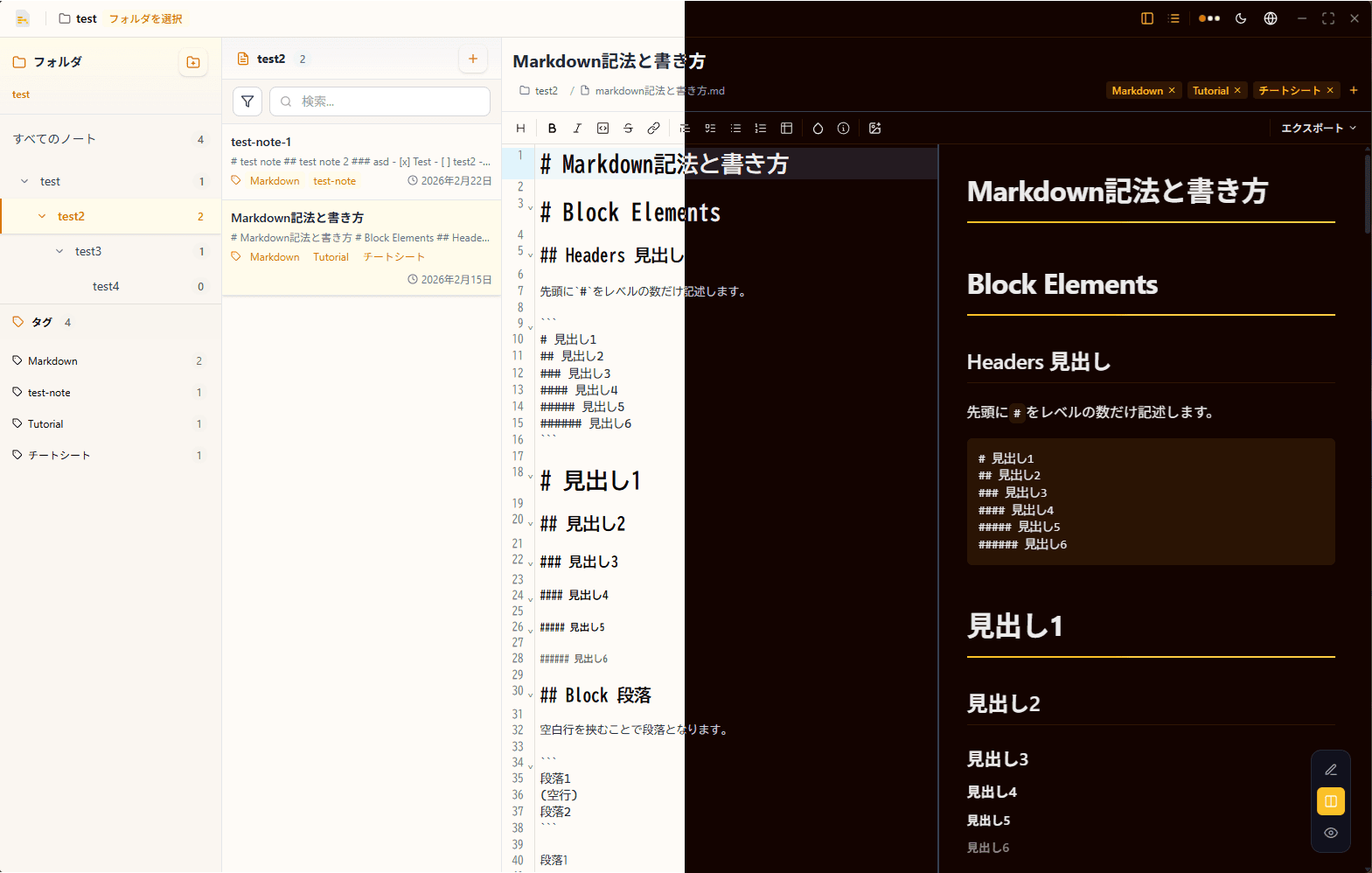
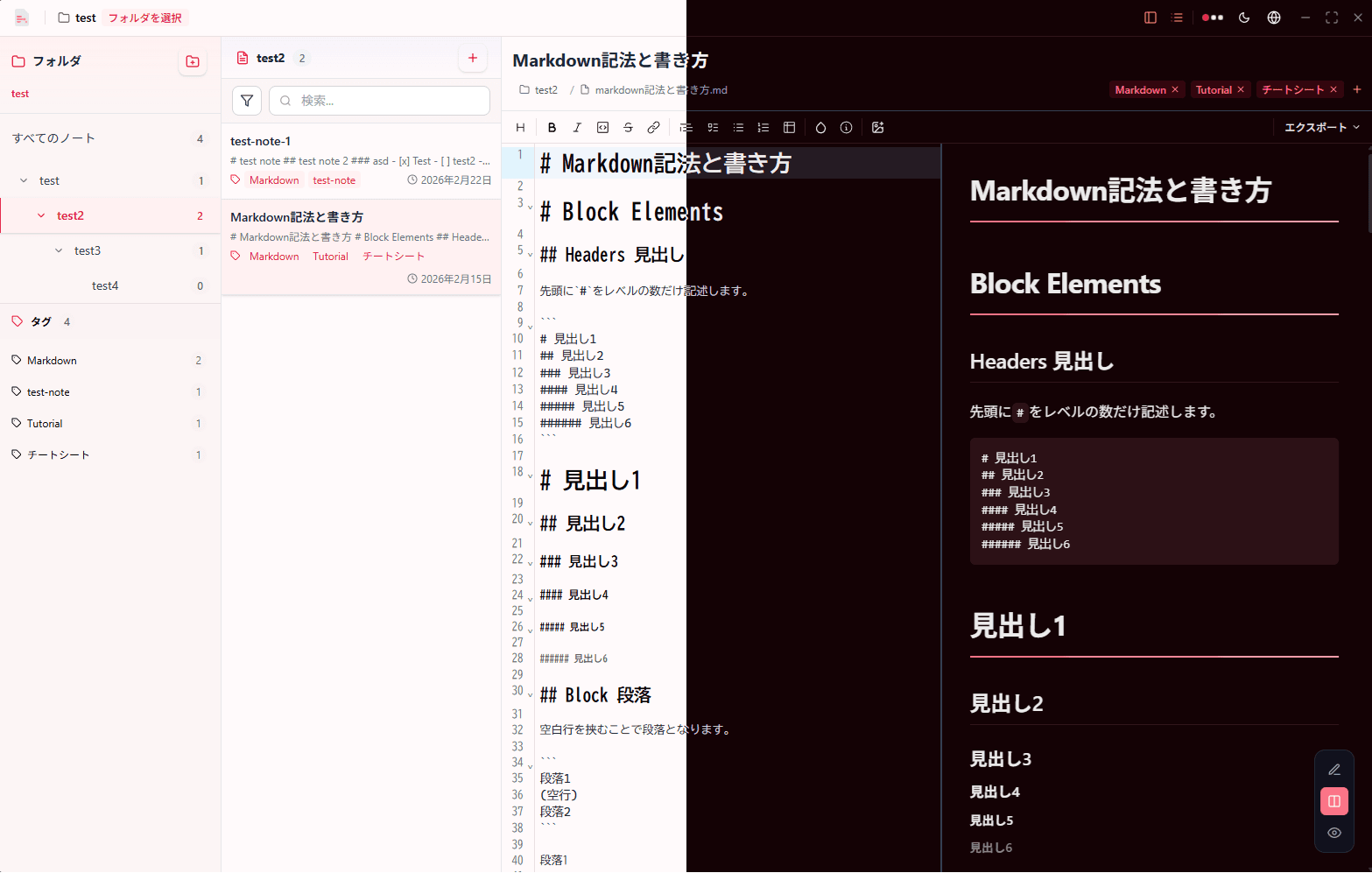
Install theme plugins
The former Notyra-Theme collection now lives in notyra-plugins as four independent theme plugins. The cards above link to their source folders.
- Open Settings → Plugins and read the third-party notice.
- Install Amber, Blue, Emerald or Rose from the registry.
- Select the installed color in Settings → Appearance. All four support light and dark modes.
The host must support collection releases. Until the first Release is published, extract the corresponding plugin ZIP and load that folder in Developer Mode. Gray and Purple remain built in. Existing custom JSON imports remain usable; plugin theme IDs use a notyra- prefix to avoid colliding with them.
To create your own palette, see Create a theme and Theme plugin manifests.
Change Theme
Notyra comes with two default themes, Dark Scale and Purple, allowing users to switch between them according to their preferences.
Create Custom Themes
Notyra supports customizing themes using JSON files. Users can create their own color themes and fully customize Notyra's appearance to their liking.